FAQ & How to Use
Everything you need to know about Linux Game Bench
🎬 Video Guide
📦 Installation
1. Install Dependencies
First, install MangoHud, Vulkan tools, git and pipx for your distribution:
Arch Linux / Manjaro / CachyOS:
sudo pacman -S mangohud lib32-mangohud vulkan-tools git python-pipxUbuntu / Debian / Pop!_OS:
sudo apt install mangohud vulkan-tools git pipxFedora:
sudo dnf install mangohud vulkan-tools git pipxopenSUSE:
sudo zypper install mangohud vulkan-tools python313-pipx2. Install Linux Game Bench
pipx install git+https://github.com/taaderbe/linuxgamebench.git3. Verify Installation
lgb --version4. Check System Requirements
lgb checkThis checks if all requirements are met: MangoHud installed, Steam running, games found, etc. Fix any issues before recording.
5. Optional: Install the GUI
Linux Game Bench also offers an optional graphical interface built with PySide6 (Qt6). If you already installed the CLI, add the GUI like this:
Arch Linux / Manjaro / CachyOS:
pipx inject linux-game-benchmark PySide6Ubuntu / Debian / Pop!_OS:
pipx inject linux-game-benchmark PySide6Fedora:
pipx inject linux-game-benchmark PySide6openSUSE:
pipx inject linux-game-benchmark PySide6Or install CLI + GUI together (fresh install):
pipx install "linux-game-benchmark[gui]" git+https://github.com/taaderbe/linuxgamebench.gitLaunch the GUI:
lgb-guiThe GUI provides the same features as the CLI: scan games, run benchmarks, view results, and upload to the community database.
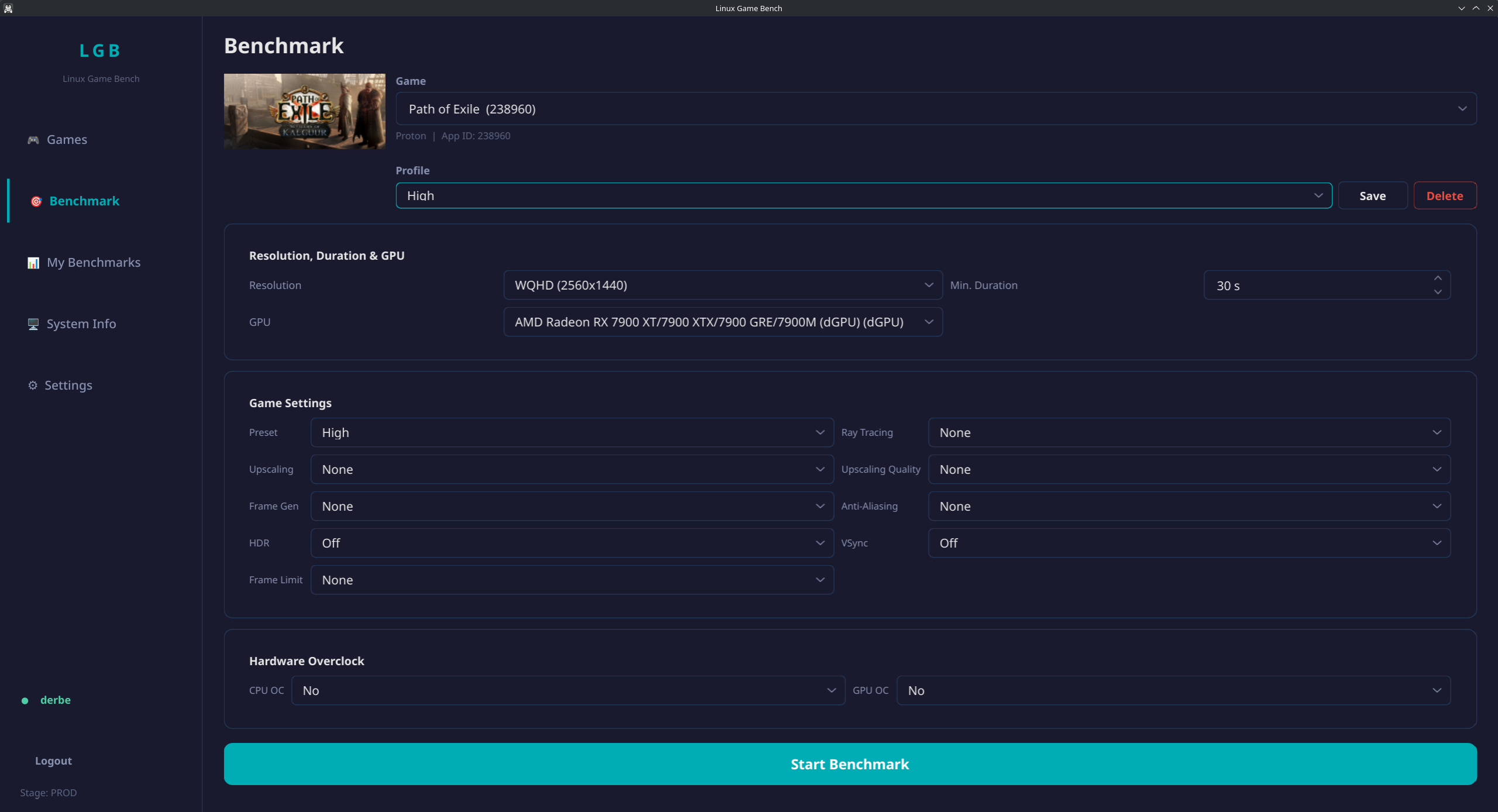
Linux Game Bench GUI - Benchmark View
6. Alternative: AppImage (Experimental)
Prefer not to use the terminal? Get the GUI as a portable AppImage - no installation required:
Then make it executable and run it:
chmod +x LinuxGameBench-x86_64.AppImage
./LinuxGameBench-x86_64.AppImage
Requirements: x86_64, glibc ≥ 2.28 (Ubuntu 20.04+, Debian 11+, Fedora 36+), FUSE. MangoHud must still be installed on your system (see step 1) - the AppImage bundles the app, not the system tools.
🎮 Steam Deck
The Steam Deck has its own, much shorter path: one line in Desktop Mode, then everything happens in Game Mode with a button chord - nothing to type, no overlay on screen. Deck runs are collected in their own Steam Deck category and are not mixed into the PC tables.
Steam Deck is a trademark of Valve Corporation. Linux Game Bench is an independent project, not affiliated with or endorsed by Valve.
1. Install (once, in Desktop Mode)
Press the Steam button and choose Power → Switch to Desktop. Then the easy way: open linuxgamebench.com/steamdeck in the Deck's browser and tap Install & link my account (when you are logged in) or Install without an account. A small launcher file is saved to Downloads. Open the file manager (Dolphin), go to Downloads, double-tap Install-Linux-Game-Bench and tap Continue when KDE asks "This will start the program" - a window opens, installs everything and closes by itself 10 seconds after it is done (if something fails it stays open so you can read the message). (Do not open it from the browser's download list: the browser cannot start the file and only asks "Choose Application" or shows it as text - just close that window and use the file manager.) The file for your account carries a one-time key: it works once and for 30 minutes, so delete the file afterwards.
Prefer the terminal? Open Konsole and paste:
curl -fsSL https://linuxgamebench.com/deck | bashThe installer downloads the app (about 130 MB) to ~/Applications, sets up invisible logging with MangoHud and a small background service. With the terminal line it asks one thing: to link your account (the install file from the website already knows). Everything lives in your home folder, so SteamOS updates do not remove it. You can read the script first: linuxgamebench.com/deck.sh.
2. Link your account (optional) - without typing a password
With the website button the choice is already made: Install & link my account links your account by itself, Install without an account asks nothing and uploads anonymously. With the terminal line the installer asks whether you want your recordings on your account. You do not need one: press Enter and the Deck uploads anonymously. Anonymous runs count in the Deck results like any other, but they do not show up in My Benchmarks, and you cannot delete or edit them later.
To link: the installer shows a short code like BCDF-GHJK. On your phone or PC open linuxgamebench.com/link, log in, enter the code and tap Yes, connect it. The Deck notices within a few seconds. No account yet? Register first.
Skipped it and changed your mind? Link any time, on the Deck in Desktop Mode: open Linux Game Bench - link account in the application menu, or run
~/Applications/LinuxGameBench.AppImage deck link(deck unlink goes back to anonymous.) Runs you recorded anonymously before stay anonymous.
3. Play and record (back in Game Mode)
- Switch back to Game Mode and start any Steam game.
- Hold L1 + R1 (the two shoulder buttons on top) and press VIEW (the small button left of the screen, marked with two overlapping squares ). A rising two-tone sound tells you the recording runs.
- Just play. After 60 seconds it stops by itself (falling two-tone sound) and the run is uploaded right away - a third sound confirms it.
- Want it shorter? Press the same chord again once at least 30 seconds are recorded; it stops and uploads at once.
Your run shows up in Steam Deck results and, if you linked your account, in My Benchmarks. The game is recognised automatically from Steam.
Settings and troubleshooting
~/Applications/LinuxGameBench.AppImage deck status
~/Applications/LinuxGameBench.AppImage deck chord --learn
~/Applications/LinuxGameBench.AppImage deck setup
~/Applications/LinuxGameBench.AppImage deck upload
~/Applications/LinuxGameBench.AppImage deck remove
deck status- is the service running, which chord, is the controller found, what happened to the latest recordingsdeck chord --learn- hold two buttons, press a third, and that becomes your chorddeck setup- run again to switch auto-upload on or off;deck setup --seconds 90changes the recording length (30-300 s)deck upload- send recordings that are still waitingdeck remove- undo everything (service, MangoHud config); recordings stay
What exactly is recorded?
What MangoHud measures for the game you pressed the chord in: frametimes and hardware sensors (temperatures, fan, clocks, power, battery). On top of that the Deck reports how it was set up during the run: plugged in or on battery, how much battery the minute used, the TDP limit, GPU clock limit and CPU governor, the resolution the game actually renders at (read from Gamescope, so 1280×720 is not mistaken for the 1280×800 screen), the frame limit and scaling filter Steam applied (such as FSR), screen brightness and an external display (dock), SteamOS / BIOS / kernel version, which Deck you have (LCD or OLED, size and type of the internal storage such as 64 GB eMMC or 512 GB NVMe, maker of the screen panel), memory sizes, the software the game ran on (Proton build or native Linux, Steam Linux Runtime, Steam client build, Mesa and Vulkan driver, gamescope) and performance-related launch options (PROTON_*, DXVK_*). No serial numbers, no account data, no file names. Nothing is recorded while you do not use the chord. If your account is linked, the run is attached to it.
I pressed the chord but nothing was recorded - why?
In Game Mode every game is recorded: Windows games through Proton, native Vulkan games and native OpenGL games alike (Steam's own overlay program writes a log for each recording, started by the chord - nothing is logged in between). While it records, a small red dot shows in Steam's performance overlay if you have that switched on (Quick Access Menu → Performance). If nothing was recorded, it is one of these: (1) The game has not started yet - on the Steam home screen or in a menu there is nothing to record, you hear the error sound (two short beeps) and deck status says no running game was found. (2) You are in Desktop Mode: there the recorder only sees Vulkan games (Proton and native Vulkan), an OpenGL game is only recorded in Game Mode - deck status then says there is no performance data for this game. (3) Two games run at once - the one in front is recorded; if neither is in front, close the other one, the recorder will not guess. (4) Steam's menu or a notification was in front: the recorder logs what is in front, so it does not start while the menu is up, and a minute in which the menu was in front for more than 5 seconds is dropped. (5) Steam's performance overlay was changed during the recording (Quick Access Menu → Performance): that ends Steam's log, so the recording stops at once with the error sound - set the overlay before you press the chord. After a fresh install, switch to Game Mode once (or restart Steam) so every setting is picked up. deck status always shows the last message and whether all games are logged.
The controller does not react after I switch back to Game Mode
Press the Steam button once; if the controls stay dead, restart the Deck. This is SteamOS itself, not Linux Game Bench: on our test Deck it happened after a longer stay in Desktop Mode (a few minutes or more) followed by Return to Gaming Mode - also with nothing of ours installed. Steam opens the controller but receives no input; restarting Steam brought the controls back every time. After a short stay in Desktop Mode (under a minute) it hardly ever happened.
I am offline - are recordings lost?
No. They wait in a small queue on the Deck and are uploaded automatically as soon as you are online again (or run deck upload).
Why are Deck results kept separate?
A handheld with a 15 W chip at 1280×800 plays in a different league than a desktop GPU. Mixing them would make both rankings useless, so handhelds get their own pages, with every model told apart (Deck LCD and OLED, ROG Ally, Legion Go ...).
Does it work on other handhelds (ROG Ally, Legion Go, ...)?
Yes, the same one-line setup recognises the ROG Ally (Ally X, Xbox Ally), Legion Go (Go S, Go 2), MSI Claw, AYANEO, GPD and ONEXPLAYER by the model name the firmware reports. They need a Linux system with Steam and Gamescope (SteamOS, Bazzite, ChimeraOS and the like). Their runs are listed on the handhelds page, apart from the PC results.
Only the Steam Deck is tested on real hardware. On the others some values (TDP, battery) may be missing and the controller chord may differ - please tell us what you find. A model that is not on the list is not recorded as a handheld; use the normal installation above and its runs go in with the PC results.
🎮 Recording a Benchmark
Step 1: List Your Games
lgb list-gamesThis shows all Steam games installed on your system:
                 Installed Games
┏━━━━━━━━━┳━━━━━━━━━━━━━━━━━━━━━━━━━━━━━┳━━━━━━━━┓
┃  App ID ┃ Name                        ┃ Type   ┃
┡━━━━━━━━━╇━━━━━━━━━━━━━━━━━━━━━━━━━━━━━╇━━━━━━━━┩
│  397540 │ Borderlands 3               │ Proton │
│ 1091500 │ Cyberpunk 2077              │ Proton │
│ 1245620 │ Elden Ring                  │ Proton │
│  427520 │ Factorio                    │ Native │
│  526870 │ Satisfactory                │ Proton │
└─────────┴─────────────────────────────┴────────┘
Total: 5 games
Step 2: Start Recording
By game name:
lgb benchmark "Cyberpunk 2077"
lgb benchmark "Counter-Strike 2"
lgb benchmark "Elden Ring"
By Steam App ID:
lgb benchmark 1091500    # Cyberpunk 2077
lgb benchmark 730        # Counter-Strike 2
lgb benchmark 1245620    # Elden Ring
Tip: Run lgb list-games to see all your games with their App IDs.
Complete Examples
Here are full command examples with settings pre-configured:
With auto-stop and resolution (recommended):
lgb benchmark "Cyberpunk 2077" --preset Ultra --resolution FHD -d 60Tip: Always use the same duration (-d) and resolution so you can compare benchmarks better. You don't have to watch the time yourself. Min: 30 seconds, Max: 5 minutes.
Supported resolutions: HD (1280x720), FHD (1920x1080), WQHD (2560x1440), UWQHD (3440x1440), UHD (3840x2160)
Cyberpunk 2077 - Ultra with Ray Tracing and FSR:
lgb benchmark "Cyberpunk 2077" --preset Ultra --resolution FHD --raytracing High --upscaling FSR3 --upscaling-quality Quality --framegen FSR3-FG -d 60Elden Ring - High settings with frame limit:
lgb benchmark 1245620 --preset High --resolution FHD --framelimit 60 -d 60Counter-Strike 2 - Competitive low latency:
lgb benchmark "Counter-Strike 2" --preset Low --resolution FHD -d 60Note: All options not specified default to None/Off. You only need to set what you're actually using.
Keyboard Shortcuts (In-Game)
Shift+F2- Start/Stop recording manuallyShift+F3- Hide/Show the overlay (if it's distracting)
What to Look For
Important: When the game starts, you must see the MangoHud overlay. It shows FPS, GPU, CPU stats and more:
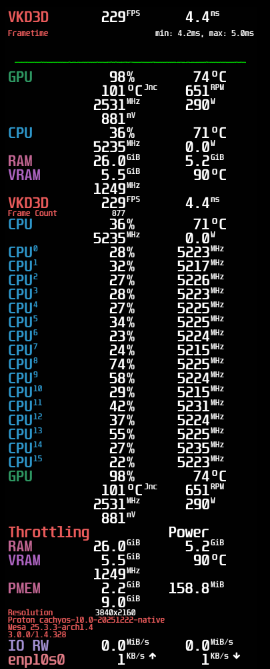
Overlay visible = Ready
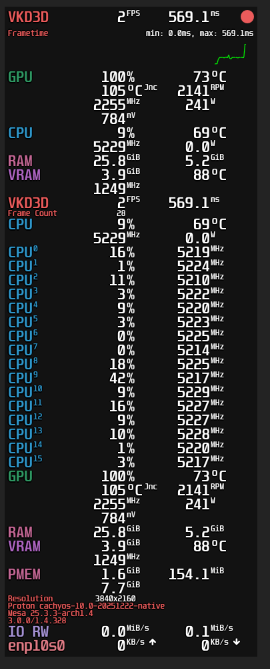
Red dot = Recording active
The red dot in the top right corner of the overlay indicates that recording is active. If you don't see the overlay, MangoHud is not working correctly.
Play until you stop recording with Shift+F2 or the timer ends. Your benchmark is automatically saved.
☁️ Uploading Your Benchmark
After a valid benchmark, you'll always be asked:
Upload to community database? [Y/n]If you choose to upload, you'll be asked if you want to log in. You always have the choice:
Without Account
Your benchmark is uploaded anonymously. It's publicly visible but you cannot edit or delete it later.
With Account (Recommended)
Log in before or during upload to manage your benchmarks:
lgb loginBenefits:
- Manage all your benchmarks in "My Benchmarks"
- Edit game settings after upload (preset, ray tracing, etc.)
- Add personal notes to your benchmarks
- Delete benchmarks anytime
- Compare your benchmarks side-by-side
Register at linuxgamebench.com/register
❓ Frequently Asked Questions
How do I update Linux Game Bench?
Update to the latest version with pipx:
pipx upgrade linux-game-benchmarkIf you also use the GUI, re-inject PySide6 afterwards:
pipx inject linux-game-benchmark PySide6What is MangoHud?
Does it work with Proton/Wine games?
How long should I record?
My GPU is detected wrong (shows iGPU instead of dGPU)
Can I delete my benchmarks?
Is my data private?
What does --framelimit do?
The --framelimit option (e.g., --framelimit 144) is a metadata tag only - it does NOT automatically limit your FPS!
You must set the frame limit yourself in:
- The game's graphics settings, OR
- Your GPU driver (NVIDIA Control Panel / AMD Adrenalin), OR
- MangoHud config (
fps_limit=144)
Use cases:
- Document that you're testing with a specific FPS cap
- Compare benchmarks at same frame limit (e.g., 60 FPS lock vs unlimited)
- Test with VSync enabled (
--vsync on --framelimit 144) to see if your GPU can maintain the target
🔧 Troubleshooting
MangoHud overlay not showing
Make sure MangoHud is installed correctly:
mangohud --versionFor Proton games, you may need to add MANGOHUD=1 %command% to Steam launch options.
"lgb: command not found"
Add pipx to your PATH:
pipx ensurepathThen restart your terminal or run source ~/.bashrc
Game crashes when recording
Try running the game without MangoHud first to ensure it works. Some anti-cheat systems may block overlays.
Driver version shows as "Unknown"
The driver version is detected using different tools depending on your GPU:
AMD / Intel (Mesa driver): Install mesa-utils (provides glxinfo)
sudo pacman -S mesa-utils          # Arch/CachyOS
sudo apt install mesa-utils        # Ubuntu/Debian
sudo dnf install mesa-demos        # Fedora
sudo zypper install Mesa-demo-x    # openSUSE
NVIDIA (proprietary driver): Install nvidia-utils (provides nvidia-smi)
sudo pacman -S nvidia-utils        # Arch/CachyOS
sudo apt install nvidia-utils-xxx  # Ubuntu (replace xxx with version)
sudo dnf install nvidia-driver     # Fedora
The tool also uses vulkaninfo as a fallback, so make sure vulkan-tools is installed.
💻 CLI Commands Reference
All available commands (lgb --help):
Main Commands
lgb login        # Login to Linux Game Bench
lgb logout       # Logout from Linux Game Bench
lgb status       # Show current login status
lgb config       # Configure client settings
lgb settings     # Configure default values for prompts
lgb scan         # Scan Steam library for games
lgb list-games   # List installed Steam games
lgb check        # Check system requirements
lgb info         # Show system information
lgb benchmark    # Run benchmark for a game
lgb analyze      # Analyze existing MangoHud log
lgb report       # Generate report from results
Game Settings Options
Use with lgb benchmark:
--preset          None / Low / Medium / High / Ultra / Custom
--raytracing      None / Low / Medium / High / Ultra / Pathtracing
--upscaling       None / FSR1 / FSR2 / FSR3 / FSR4 / DLSS / DLSS2 /
                  DLSS3 / DLSS3.5 / DLSS4 / XeSS / XeSS2 / TSR
--upscaling-quality   None / Performance / Balanced / Quality / Ultra-Quality
--framegen        None / FSR3-FG / DLSS3-FG / DLSS4-FG / DLSS4-MFG /
                  XeSS-FG / AFMF / AFMF2 / AFMF3 / Smooth-Motion
--aa              None / FXAA / SMAA / TAA / DLAA / MSAA
--hdr             On / Off
--vsync           On / Off
--framelimit      None / 30 / 60 / 120 / 144 / 165 / 240 / 360
--cpu-oc          Yes / No
--gpu-oc          Yes / No
Tip: Use lgb settings to save default values so you don't have to specify them every time.
🎬 Video-Anleitung
📦 Installation
1. Abhängigkeiten installieren
Zuerst MangoHud, Vulkan-Tools, git und pipx für deine Distribution installieren:
Arch Linux / Manjaro / CachyOS:
sudo pacman -S mangohud lib32-mangohud vulkan-tools git python-pipxUbuntu / Debian / Pop!_OS:
sudo apt install mangohud vulkan-tools git pipxFedora:
sudo dnf install mangohud vulkan-tools git pipxopenSUSE:
sudo zypper install mangohud vulkan-tools python313-pipx2. Linux Game Bench installieren
pipx install git+https://github.com/taaderbe/linuxgamebench.git3. Installation prüfen
lgb --version4. Systemanforderungen prüfen
lgb checkPrüft ob alle Voraussetzungen erfüllt sind: MangoHud installiert, Steam läuft, Spiele gefunden, etc. Behebe Probleme vor der Aufnahme.
5. Optional: GUI installieren
Linux Game Bench bietet auch eine optionale grafische Oberfläche mit PySide6 (Qt6). Wenn du die CLI bereits installiert hast, füge die GUI so hinzu:
Arch Linux / Manjaro / CachyOS:
pipx inject linux-game-benchmark PySide6Ubuntu / Debian / Pop!_OS:
pipx inject linux-game-benchmark PySide6Fedora:
pipx inject linux-game-benchmark PySide6openSUSE:
pipx inject linux-game-benchmark PySide6Oder CLI + GUI zusammen installieren (Neuinstallation):
pipx install "linux-game-benchmark[gui]" git+https://github.com/taaderbe/linuxgamebench.gitGUI starten:
lgb-guiDie GUI bietet die gleichen Funktionen wie die CLI: Spiele scannen, Benchmarks ausführen, Ergebnisse ansehen und zur Community-Datenbank hochladen.
Linux Game Bench GUI - Benchmark-Ansicht
6. Alternative: AppImage (Experimentell)
Du möchtest nicht mit dem Terminal arbeiten? Hol dir die GUI als portables AppImage - ganz ohne Installation:
Dann ausführbar machen und starten:
chmod +x LinuxGameBench-x86_64.AppImage
./LinuxGameBench-x86_64.AppImage
Voraussetzungen: x86_64, glibc ≥ 2.28 (Ubuntu 20.04+, Debian 11+, Fedora 36+), FUSE. MangoHud muss weiterhin auf deinem System installiert sein (siehe Schritt 1) - das AppImage enthält nur die App, nicht die System-Tools.
🎮 Steam Deck
Das Steam Deck hat einen eigenen, deutlich kürzeren Weg: eine Zeile im Desktop-Modus, danach läuft alles im Game Mode mit einer Tastenkombination - nichts tippen, kein Overlay auf dem Bild. Deck-Läufe landen in einer eigenen Steam-Deck-Kategorie und werden nicht mit den PC-Tabellen vermischt.
Steam Deck ist eine Marke der Valve Corporation. Linux Game Bench ist ein unabhängiges Projekt, nicht mit Valve verbunden und nicht von Valve empfohlen.
1. Installieren (einmalig, im Desktop-Modus)
Steam-Taste drücken und Power → In den Desktop wechseln wählen. Dann der einfache Weg: Öffne im Browser des Decks linuxgamebench.com/steamdeck und tippe auf Install & link my account (wenn du eingeloggt bist) oder Install without an account. Eine kleine Startdatei landet im Ordner Downloads. Öffne den Dateimanager (Dolphin), geh nach Downloads, tippe doppelt auf Install-Linux-Game-Bench und tippe auf Continue, wenn KDE "This will start the program" fragt - ein Fenster öffnet sich, installiert alles und schließt sich 10 Sekunden nach dem Ende von selbst (bei einem Fehler bleibt es offen, damit du die Meldung lesen kannst). (Nicht in der Download-Liste des Browsers öffnen: Der Browser kann die Datei nicht starten und fragt nur "Choose Application" oder zeigt sie als Text - schließe dieses Fenster und nimm den Dateimanager.) Die Datei für dein Konto trägt einen Einmal-Schlüssel: Er gilt einmal und 30 Minuten, lösche die Datei danach.
Lieber im Terminal? Öffne die Konsole und füge ein:
curl -fsSL https://linuxgamebench.com/deck | bashDas Skript lädt die App (rund 130 MB) nach ~/Applications, richtet unsichtbares Mitschreiben mit MangoHud und einen kleinen Hintergrunddienst ein. Mit der Terminal-Zeile fragt es nur nach einem: dem Verknüpfen deines Kontos (die Installationsdatei von der Website weiß es schon). Alles liegt in deinem Home-Ordner, SteamOS-Updates löschen es also nicht. Du kannst das Skript vorher lesen: linuxgamebench.com/deck.sh.
2. Konto verknüpfen (optional) - ohne Passwort zu tippen
Beim Knopf auf der Website ist die Entscheidung schon gefallen: Install & link my account verknüpft dein Konto von selbst, Install without an account fragt nichts und lädt anonym hoch. Mit der Terminal-Zeile fragt das Skript, ob die Aufnahmen auf deinem Konto landen sollen. Du brauchst keins: Drücke Enter, dann lädt das Deck anonym hoch. Anonyme Läufe zählen in den Deck-Ergebnissen wie alle anderen, erscheinen aber nicht unter My Benchmarks, und du kannst sie später weder löschen noch bearbeiten.
Zum Verknüpfen: Das Skript zeigt einen kurzen Code wie BCDF-GHJK. Öffne auf dem Handy oder PC linuxgamebench.com/link, melde dich an, gib den Code ein und tippe auf Yes, connect it. Das Deck merkt es nach wenigen Sekunden. Noch kein Konto? Erst registrieren.
Übersprungen und es dir anders überlegt? Verknüpfe jederzeit, am Deck im Desktop-Modus: Öffne im Anwendungsmenü Linux Game Bench - link account oder führe aus
~/Applications/LinuxGameBench.AppImage deck link(deck unlink geht zurück zu anonym.) Früher anonym aufgenommene Läufe bleiben anonym.
3. Spielen und aufnehmen (zurück im Game Mode)
- Zurück in den Game Mode wechseln und ein beliebiges Steam-Spiel starten.
- L1 + R1 (die beiden Schultertasten oben) halten und VIEW drücken (der kleine Knopf links neben dem Bildschirm, mit den zwei übereinanderliegenden Quadraten ). Ein aufsteigender Zwei-Ton-Sound zeigt, dass die Aufnahme läuft.
- Einfach weiterspielen. Nach 60 Sekunden endet sie von selbst (absteigender Zwei-Ton-Sound) und der Lauf wird sofort hochgeladen - ein dritter Ton bestätigt das.
- Kürzer gewünscht? Drück dieselbe Kombination noch einmal, sobald mindestens 30 Sekunden aufgenommen sind; dann stoppt und lädt sie sofort hoch.
Dein Lauf erscheint unter Steam-Deck-Ergebnisse und, wenn du dein Konto verknüpft hast, in My Benchmarks. Das Spiel wird automatisch über Steam erkannt.
Einstellungen und Fehlersuche
~/Applications/LinuxGameBench.AppImage deck status
~/Applications/LinuxGameBench.AppImage deck chord --learn
~/Applications/LinuxGameBench.AppImage deck setup
~/Applications/LinuxGameBench.AppImage deck upload
~/Applications/LinuxGameBench.AppImage deck remove
deck status- läuft der Dienst, welche Kombination gilt, wird der Controller gefunden, was ist mit den letzten Aufnahmen passiertdeck chord --learn- zwei Tasten halten, eine dritte drücken, und das ist deine Kombinationdeck setup- erneut ausführen, um Auto-Upload an- oder auszuschalten;deck setup --seconds 90ändert die Aufnahmelänge (30-300 s)deck upload- noch wartende Aufnahmen sendendeck remove- alles rückgängig machen (Dienst, MangoHud-Config); Aufnahmen bleiben
Was wird genau aufgenommen?
Was MangoHud für das Spiel misst, in dem du die Kombination gedrückt hast: Frametimes und Hardware-Sensoren (Temperaturen, Lüfter, Takte, Leistung, Akku). Dazu meldet das Deck, wie es während des Laufs eingestellt war: am Strom oder im Akkubetrieb, wie viel Akku die Minute verbraucht hat, TDP-Limit, GPU-Takt-Limit und CPU-Governor, die Auflösung, in der das Spiel tatsächlich rendert (aus Gamescope gelesen, damit 1280×720 nicht mit dem 1280×800-Bildschirm verwechselt wird), das Bildraten-Limit und den Skalierungsfilter, den Steam angewendet hat (etwa FSR), Bildschirmhelligkeit und ein externes Display (Dock), SteamOS-/BIOS-/Kernel-Version, welches Deck du hast (LCD oder OLED, Größe und Art des internen Speichers wie 64 GB eMMC oder 512 GB NVMe, Hersteller des Bildschirm-Panels), Speichergrößen, die Software, auf der das Spiel lief (Proton-Version oder natives Linux, Steam Linux Runtime, Steam-Client-Version, Mesa- und Vulkan-Treiber, Gamescope) und leistungsrelevante Startoptionen (PROTON_*, DXVK_*). Keine Seriennummern, keine Kontodaten, keine Dateinamen. Solange du die Kombination nicht benutzt, wird nichts aufgezeichnet. Ist dein Konto verknüpft, wird der Lauf ihm zugeordnet.
Ich habe die Kombination gedrückt, aber nichts wurde aufgenommen - warum?
Im Game Mode wird jedes Spiel aufgenommen: Windows-Spiele über Proton, native Vulkan-Spiele und native OpenGL-Spiele gleichermaßen (das Overlay-Programm von Steam schreibt für jede Aufnahme einen eigenen Log, den der Tastendruck startet - dazwischen wird nichts mitgeschrieben). Währenddessen zeigt sich ein kleiner roter Punkt im Leistungs-Overlay von Steam, wenn du es eingeschaltet hast (Schnellzugriff → Leistung). Wurde nichts aufgenommen, liegt es an einem von diesen Punkten: (1) Das Spiel ist noch nicht gestartet - auf dem Steam-Startbildschirm oder in einem Menü gibt es nichts aufzunehmen, du hörst den Fehlerton (zwei kurze Pieptöne) und deck status meldet, dass kein laufendes Spiel gefunden wurde. (2) Du bist im Desktop-Modus: Dort sieht der Recorder nur Vulkan-Spiele (Proton und native Vulkan), ein OpenGL-Spiel wird nur im Game Mode aufgenommen - deck status meldet dann, dass es für dieses Spiel keine Leistungsdaten gibt. (3) Zwei Spiele laufen gleichzeitig - aufgenommen wird das im Vordergrund; ist keines vorn, schließ das andere, der Recorder rät nicht. (4) Steams Menü oder eine Benachrichtigung war vorn: Der Recorder schreibt mit, was vorn zu sehen ist, deshalb startet er nicht, solange das Menü offen ist, und eine Minute, in der das Menü länger als 5 Sekunden vorn war, wird verworfen. (5) Das Leistungs-Overlay von Steam wurde während der Aufnahme umgestellt (Schnellzugriff → Leistung): Das beendet Steams Log, die Aufnahme bricht sofort mit dem Fehlerton ab - stell das Overlay ein, bevor du die Kombination drückst. Wechsle nach einer frischen Installation einmal in den Game Mode (oder starte Steam neu), damit alles übernommen wird. deck status zeigt immer die letzte Meldung und ob alle Spiele geloggt werden.
Der Controller reagiert nach dem Wechsel zurück in den Game Mode nicht
Drück einmal die Steam-Taste; bleibt die Steuerung tot, starte das Deck neu. Das ist SteamOS selbst und nicht Linux Game Bench: Auf unserem Test-Deck trat es nach einem längeren Aufenthalt im Desktop-Modus (ein paar Minuten oder mehr) und anschließendem Return to Gaming Mode auf - auch, als nichts von uns installiert war. Steam öffnet den Controller, bekommt aber keine Eingaben; ein Neustart von Steam hat die Steuerung jedes Mal zurückgebracht. Nach kurzem Aufenthalt im Desktop-Modus (unter einer Minute) kam es kaum vor.
Ich bin offline - gehen Aufnahmen verloren?
Nein. Sie warten in einer kleinen Warteschlange auf dem Deck und werden automatisch hochgeladen, sobald du wieder online bist (oder mit deck upload).
Warum stehen Deck-Ergebnisse getrennt?
Ein Handheld mit 15-Watt-Chip bei 1280×800 spielt in einer anderen Liga als eine Desktop-Grafikkarte. Gemeinsam würden beide Ranglisten unbrauchbar, deshalb haben Handhelds eigene Seiten, auf denen jedes Modell unterschieden wird (Deck LCD und OLED, ROG Ally, Legion Go ...).
Geht das auch auf anderen Handhelds (ROG Ally, Legion Go, ...)?
Ja, dieselbe Ein-Zeilen-Einrichtung erkennt ROG Ally (Ally X, Xbox Ally), Legion Go (Go S, Go 2), MSI Claw, AYANEO, GPD und ONEXPLAYER am Modellnamen, den die Firmware meldet. Nötig ist ein Linux-System mit Steam und Gamescope (SteamOS, Bazzite, ChimeraOS und ähnliche). Die Läufe stehen auf der Handheld-Seite, getrennt von den PC-Ergebnissen.
Nur das Steam Deck ist auf echter Hardware getestet. Bei den anderen können einzelne Werte (TDP, Akku) fehlen, und die Tastenkombination kann abweichen - sag uns bitte, was dir auffällt. Ein Modell, das nicht auf der Liste steht, wird nicht als Handheld erfasst; nimm die normale Installation oben, dann landen seine Läufe bei den PC-Ergebnissen.
🎮 Benchmark aufnehmen
Schritt 1: Spiele auflisten
lgb list-gamesZeigt alle installierten Steam-Spiele an:
                 Installed Games
┏━━━━━━━━━┳━━━━━━━━━━━━━━━━━━━━━━━━━━━━━┳━━━━━━━━┓
┃  App ID ┃ Name                        ┃ Type   ┃
┡━━━━━━━━━╇━━━━━━━━━━━━━━━━━━━━━━━━━━━━━╇━━━━━━━━┩
│  397540 │ Borderlands 3               │ Proton │
│ 1091500 │ Cyberpunk 2077              │ Proton │
│ 1245620 │ Elden Ring                  │ Proton │
│  427520 │ Factorio                    │ Native │
│  526870 │ Satisfactory                │ Proton │
└─────────┴─────────────────────────────┴────────┘
Total: 5 games
Schritt 2: Aufnahme starten
Nach Spielname:
lgb benchmark "Cyberpunk 2077"
lgb benchmark "Counter-Strike 2"
lgb benchmark "Elden Ring"
Nach Steam App ID:
lgb benchmark 1091500    # Cyberpunk 2077
lgb benchmark 730        # Counter-Strike 2
lgb benchmark 1245620    # Elden Ring
Tipp: Mit lgb list-games siehst du alle deine Spiele mit ihren App IDs.
Komplette Beispiele
Hier sind vollständige Befehlsbeispiele mit voreingestellten Settings:
Mit Auto-Stopp und Auflösung (empfohlen):
lgb benchmark "Cyberpunk 2077" --preset Ultra --resolution FHD -d 60Tipp: Nimm immer die gleiche Dauer (-d) und Auflösung, dann kannst du Benchmarks besser vergleichen. Du musst nicht selbst auf die Zeit achten. Min: 30 Sekunden, Max: 5 Minuten.
Unterstützte Auflösungen: HD (1280x720), FHD (1920x1080), WQHD (2560x1440), UWQHD (3440x1440), UHD (3840x2160)
Cyberpunk 2077 - Ultra mit Ray Tracing und FSR:
lgb benchmark "Cyberpunk 2077" --preset Ultra --resolution FHD --raytracing High --upscaling FSR3 --upscaling-quality Quality --framegen FSR3-FG -d 60Elden Ring - High-Einstellungen mit Frame-Limit:
lgb benchmark 1245620 --preset High --resolution FHD --framelimit 60 -d 60Counter-Strike 2 - Kompetitiv, niedrige Latenz:
lgb benchmark "Counter-Strike 2" --preset Low --resolution FHD -d 60Hinweis: Alle nicht angegebenen Optionen sind automatisch None/Off. Du musst nur setzen, was du tatsächlich verwendest.
Tastenkürzel (Im Spiel)
Shift+F2- Aufnahme manuell starten/stoppenShift+F3- Overlay ein-/ausblenden (falls es stört)
Worauf du achten musst
Wichtig: Wenn das Spiel startet, muss das MangoHud-Overlay sichtbar sein. Es zeigt FPS, GPU, CPU-Statistiken und mehr:
Overlay sichtbar = Bereit
Roter Punkt = Aufnahme aktiv
Der rote Punkt oben rechts im Overlay zeigt an, dass die Aufnahme läuft. Wenn du das Overlay nicht siehst, funktioniert MangoHud nicht korrekt.
Spiele bis du die Aufnahme mit Shift+F2 stoppst oder der Timer endet. Dein Benchmark wird automatisch gespeichert.
☁️ Benchmark hochladen
Nach einem gültigen Benchmark wirst du immer gefragt:
Upload to community database? [Y/n]Wenn du hochlädst, wirst du gefragt, ob du dich einloggen möchtest. Du hast immer die Wahl:
Ohne Account
Dein Benchmark wird anonym hochgeladen. Er ist öffentlich sichtbar, aber du kannst ihn später nicht bearbeiten oder löschen.
Mit Account (Empfohlen)
Logge dich vor oder während dem Upload ein, um deine Benchmarks zu verwalten:
lgb loginVorteile:
- Alle Benchmarks in "My Benchmarks" verwalten
- Spieleinstellungen nach dem Upload bearbeiten (Preset, Ray Tracing, etc.)
- Persönliche Notizen zu deinen Benchmarks hinzufügen
- Benchmarks jederzeit löschen
- Benchmarks nebeneinander vergleichen
Registriere dich auf linuxgamebench.com/register
❓ Häufige Fragen
Wie aktualisiere ich Linux Game Bench?
Aktualisiere auf die neueste Version mit pipx:
pipx upgrade linux-game-benchmarkWenn du auch die GUI nutzt, installiere PySide6 danach erneut:
pipx inject linux-game-benchmark PySide6Was ist MangoHud?
Funktioniert es mit Proton/Wine-Spielen?
Wie lange sollte ich aufnehmen?
Meine GPU wird falsch erkannt (zeigt iGPU statt dGPU)
Kann ich meine Benchmarks löschen?
Sind meine Daten privat?
Was macht --framelimit?
Die --framelimit Option (z.B. --framelimit 144) ist nur ein Metadaten-Tag - sie limitiert NICHT automatisch deine FPS!
Du musst das Frame-Limit selbst setzen in:
- Den Grafikeinstellungen des Spiels, ODER
- Deinem GPU-Treiber (NVIDIA Control Panel / AMD Adrenalin), ODER
- MangoHud Config (
fps_limit=144)
Anwendungsfälle:
- Dokumentieren, dass du mit einem bestimmten FPS-Limit testest
- Benchmarks bei gleichem Frame-Limit vergleichen (z.B. 60 FPS Lock vs. unbegrenzt)
- Mit VSync testen (
--vsync on --framelimit 144) um zu sehen, ob deine GPU das Ziel halten kann
🔧 Problemlösung
MangoHud-Overlay wird nicht angezeigt
Stelle sicher, dass MangoHud korrekt installiert ist:
mangohud --versionFür Proton-Spiele musst du eventuell MANGOHUD=1 %command% zu den Steam-Startoptionen hinzufügen.
"lgb: command not found"
Füge pipx zu deinem PATH hinzu:
pipx ensurepathDann Terminal neustarten oder source ~/.bashrc ausführen.
Spiel stürzt bei Aufnahme ab
Versuche das Spiel zuerst ohne MangoHud zu starten, um sicherzustellen, dass es funktioniert. Manche Anti-Cheat-Systeme blockieren Overlays.
Treiberversion wird als "Unknown" angezeigt
Die Treiberversion wird mit verschiedenen Tools erkannt, je nach GPU:
AMD / Intel (Mesa-Treiber): Installiere mesa-utils (enthält glxinfo)
sudo pacman -S mesa-utils          # Arch/CachyOS
sudo apt install mesa-utils        # Ubuntu/Debian
sudo dnf install mesa-demos        # Fedora
sudo zypper install Mesa-demo-x    # openSUSE
NVIDIA (proprietärer Treiber): Installiere nvidia-utils (enthält nvidia-smi)
sudo pacman -S nvidia-utils        # Arch/CachyOS
sudo apt install nvidia-utils-xxx  # Ubuntu (xxx durch Version ersetzen)
sudo dnf install nvidia-driver     # Fedora
Das Tool nutzt auch vulkaninfo als Fallback, stelle also sicher dass vulkan-tools installiert ist.
💻 CLI-Befehle Referenz
Alle verfügbaren Befehle (lgb --help):
Hauptbefehle
lgb login        # Bei Linux Game Bench anmelden
lgb logout       # Von Linux Game Bench abmelden
lgb status       # Aktuellen Login-Status anzeigen
lgb config       # Client-Einstellungen konfigurieren
lgb settings     # Standardwerte für Prompts konfigurieren
lgb scan         # Steam-Bibliothek nach Spielen durchsuchen
lgb list-games   # Installierte Steam-Spiele auflisten
lgb check        # Systemanforderungen prüfen
lgb info         # Systeminformationen anzeigen
lgb benchmark    # Benchmark für ein Spiel starten
lgb analyze      # Existierendes MangoHud-Log analysieren
lgb report       # Bericht aus Ergebnissen erstellen
Spieleinstellungs-Optionen
Verwendung mit lgb benchmark:
--preset          None / Low / Medium / High / Ultra / Custom
--raytracing      None / Low / Medium / High / Ultra / Pathtracing
--upscaling       None / FSR1 / FSR2 / FSR3 / FSR4 / DLSS / DLSS2 /
                  DLSS3 / DLSS3.5 / DLSS4 / XeSS / XeSS2 / TSR
--upscaling-quality   None / Performance / Balanced / Quality / Ultra-Quality
--framegen        None / FSR3-FG / DLSS3-FG / DLSS4-FG / DLSS4-MFG /
                  XeSS-FG / AFMF / AFMF2 / AFMF3 / Smooth-Motion
--aa              None / FXAA / SMAA / TAA / DLAA / MSAA
--hdr             On / Off
--vsync           On / Off
--framelimit      None / 30 / 60 / 120 / 144 / 165 / 240 / 360
--cpu-oc          Yes / No
--gpu-oc          Yes / No
Tipp: Mit lgb settings kannst du Standardwerte speichern, damit du sie nicht jedes Mal angeben musst.